Organising viewings
Under scheduling you see viewing slots, available places, registered prospects and the workload of the people in charge. A public link allows registration for a viewing and an online application without a user account.
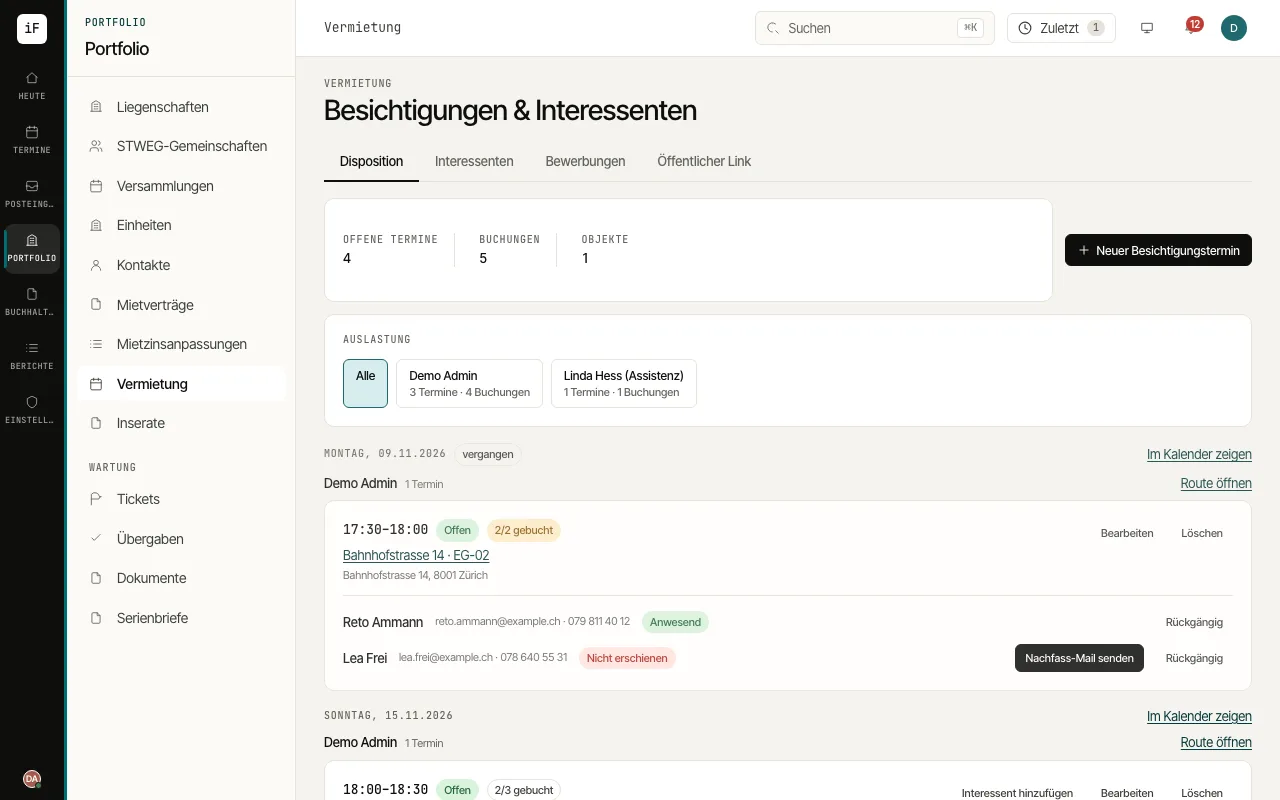
Create a slot for a unit with "New viewing slot" and set the capacity.
Add people with "Add prospect" or, in the "Public link" tab, create the viewing and application link for the unit.
Plan the day with "Workload" per person in charge, "Open route" for the order of the addresses and "Show in calendar". Move a booking with "Move" to another free slot of the same object; if you wish, the person gets the new time by e-mail.
After the viewing, record attendance with "Attended" or "No-show". For a no-show you can "Send follow-up". Continue working on prospects and applications in the "Prospects" and "Applications" tabs.