Planning a budget and comparing it with actuals
Every property has a budget per year on its book: lines per account, groups like "Maintenance", actuals straight from the posted journal. The owner approves once a year in the portal; overruns become the next step.
Open the property, tab "Accounting", sub-tab "Budget". The year strip shows each year's state (approved, draft, no budget yet); the step strip below says where the open budget stands: draft, for approval, approved, budget vs. actual.
A year without a budget offers three ways: from last year's actuals (recommended: last year's actual plus the index plus accepted quotes of open tickets, the AI words the reason of every line), from last year's budget, or empty. Every card says what it builds on.
In the draft, four tiles show last year's actual, the index, the quotes and the proposal; the table shows the same components per line, the budget amount (editable) and the why. Add accounts and save; groups across accounts are kept under Settings › Accounting › Budget. Groups, thresholds and the index apply to every property of the firm: only administrators and people with firm-wide access can change them; everyone else sees them read-only with the reason and keeps editing the budgets of their own properties.
Submit the budget "for approval". The owner approves it in the owner portal; an approval that arrived another way is recorded with "Record approval" and its basis. Changes afterwards become a new version; the old one stays visible.
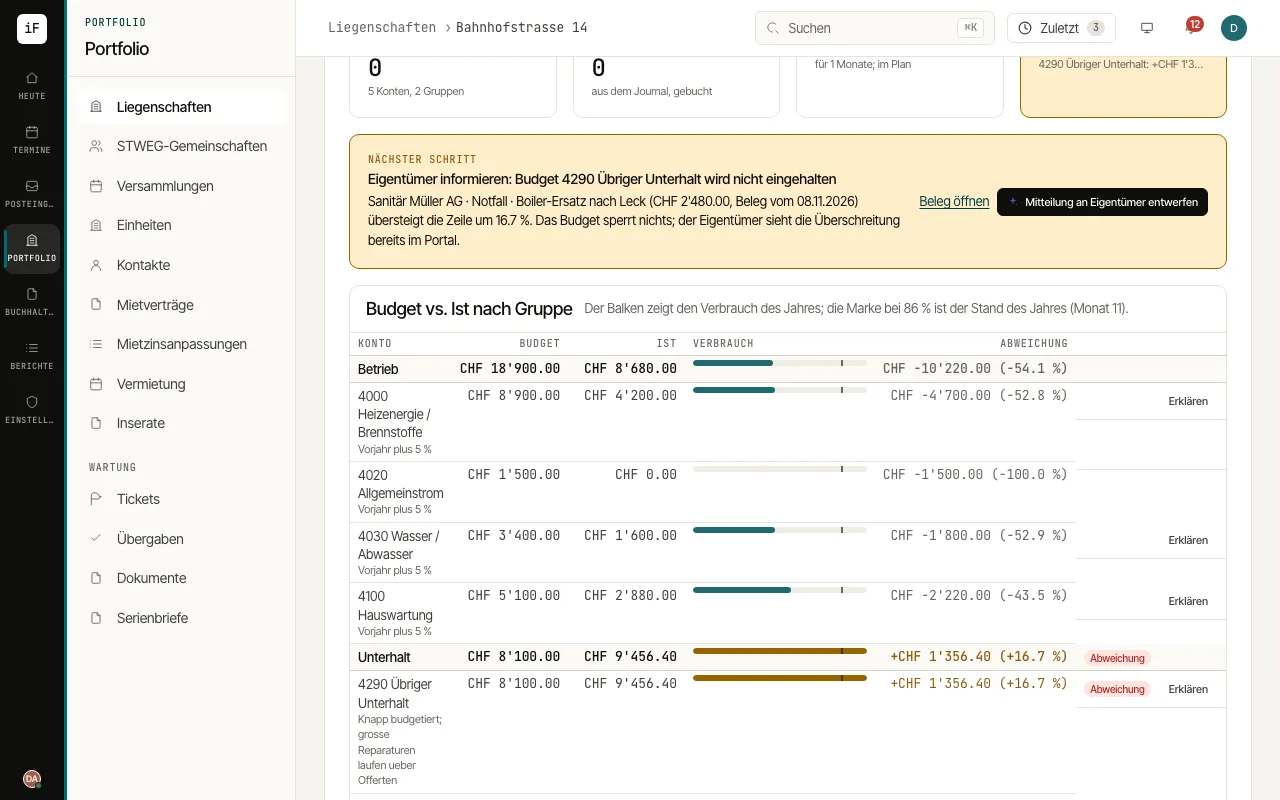
After approval the same page becomes budget vs. actual: budget, actual to date, remaining and exceeded as tiles, a consumption bar with the year mark per group and line. Above the firm's threshold (default 10 % and CHF 1'000) the "Deviation" mark appears; "Explain" shows the vouchers behind it and, with AI on, a short explanation.
An overrun becomes the next step "Inform the owner" with the voucher and the draft of a message; the owner sees it in the portal and in the owner report. Nothing is blocked. Accounts that were not budgeted go into a new version with "Take into a line".
An owner's whole picture across all properties of a year is on his contact page and in the owner portal: status, budget, actual and deviation per property, the groups across all properties and the drafts waiting for approval. At the turn of the year, copy the budget into the next year, with or without the actuals as its basis.