Reviewing a supplier invoice
In the inbox, the voucher and the posting suggestion sit side by side. The AI supports capturing and account assignment. You check the details and decide on the posting.
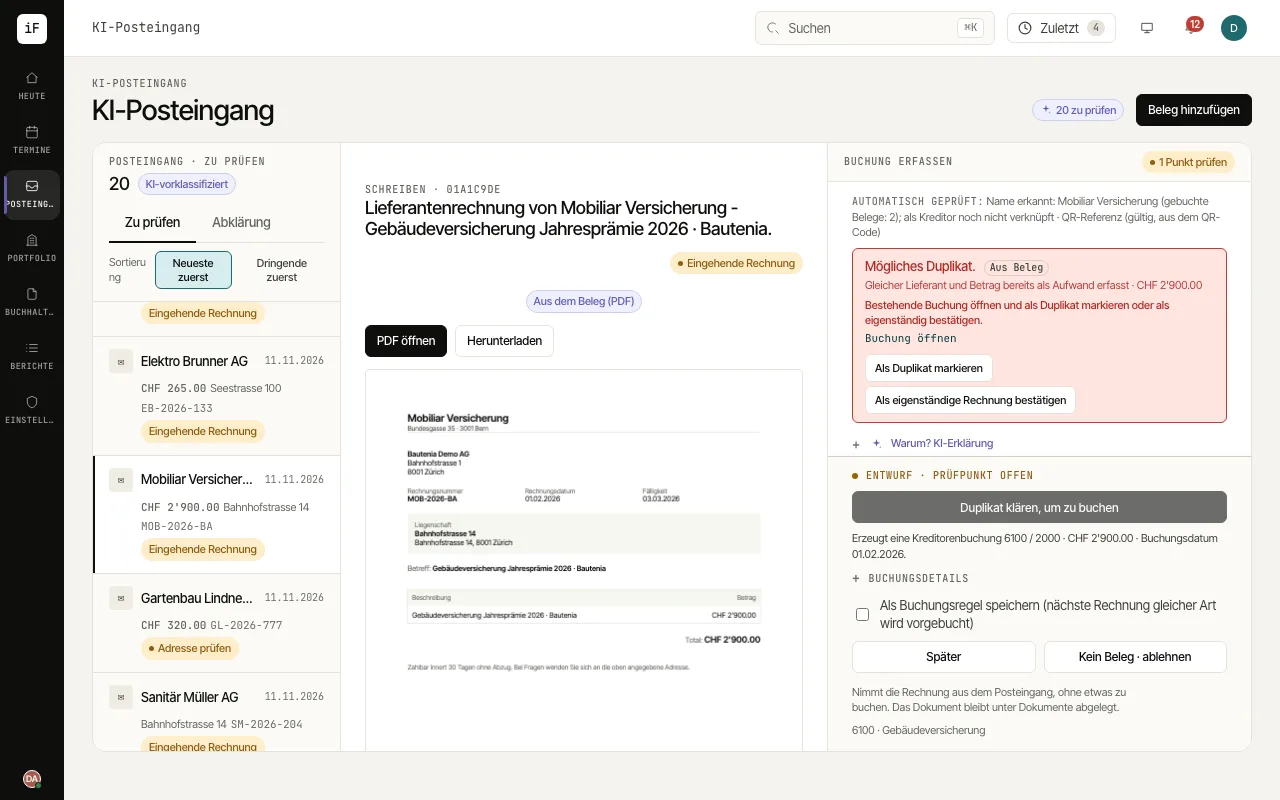
Select a voucher from the list or add a new one.
Read the "Checked automatically" line and the checkpoints below it. Compare supplier, amount, service period, property and account with the voucher. If anything is unclear, open "Why? AI explanation".
Pay attention to how certain the account assignment is: with "Please check" alternatives are listed below; with "Uncertain account: please choose one." choose the suggestion, an alternative or another account, otherwise you cannot post. If the review reports "Account differs from earlier bookings", switch to the usual account with "Switch to …" or keep your choice deliberately.
Resolve checkpoints such as a possible duplicate. A finding that does not apply can be hidden with "Not relevant" and a reason; a blocking point cannot be hidden.
Check the posting sequence shown and post with "Post … as a supplier invoice".